
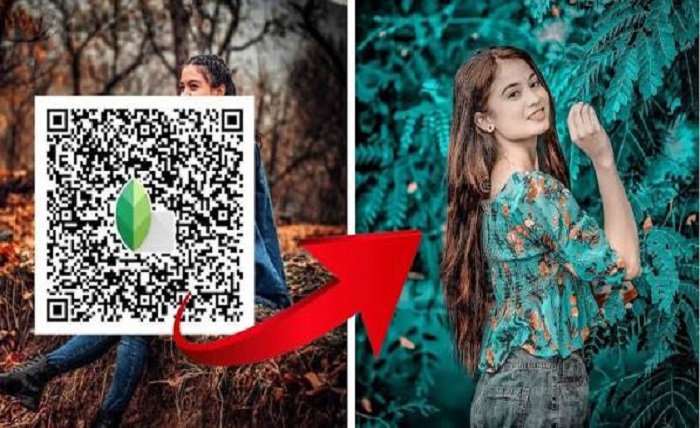
Snapseed QR codes have revolutionized the way photographers and enthusiasts share their creative vision. Instead of manually recreating complex editing sequences, Snapseed QR codes allow users to encapsulate entire editing workflows into a scannable image. Whether you are a professional looking for consistency or a hobbyist eager to experiment, Snapseed QR codes are a game-changer in mobile photography . This guide provides a comprehensive look into how these digital keys work, how to create and use them, and why they are essential for your editing toolkit.
What Exactly Are Snapseed QR Codes?
Snapseed QR codes are a unique feature within Google’s powerful photo editing app that allows users to save, share, and apply custom editing styles instantly . When you apply a series of edits—such as brightness adjustments, contrast tweaks, and filter overlays—Snapseed compiles these actions into a specific code. When this Snapseed QR code is scanned by another user, the app replicates the exact same adjustments on a new image. Essentially, Snapseed QR codes are digital presets that democratize professional editing, making complex styles accessible to anyone with the app .
The Key Benefits of Using Snapseed QR Codes
Why should you incorporate Snapseed QR codes into your workflow? The advantages are significant. First, they offer immense efficiency; you can apply a complex look to a photo in seconds, saving valuable time . Second, they ensure consistency—crucial for brands or social media feeds that require a unified aesthetic . Third, they foster collaboration; photographers can exchange Snapseed QR codes to share techniques and inspire creativity within communities . Finally, they preserve your editing history, allowing you to return to a specific edit style without memorizing every adjustment.
Step-by-Step Guide: Creating Your Own Snapseed QR Codes
Creating your own Snapseed QR codes is surprisingly simple and allows you to build a personal library of custom filters. To start, open an image in Snapseed and apply your desired edits—whether it’s a vibrant landscape look or a moody portrait style. Once you are satisfied, tap the menu icon (the three dots or stacked lines) in the top right corner. From this menu, select the “QR Look” option . To generate a shareable file, choose “Create QR Look.” The app will then generate a Snapseed QR code that you can save as a JPEG image or share directly with friends and followers .
How to Scan and Apply Snapseed QR Codes
Applying a preset via Snapseed QR codes is just as straightforward. Begin by opening any image in the Snapseed app that you wish to edit. Navigate to the same “QR Look” option in the top-right menu and select “Scan QR Look.” Your device’s camera will activate, allowing you to point it at the Snapseed QR codes displayed on another screen or a printed sheet . Alternatively, you can upload a QR code image from your photo gallery . Once the code is recognized, Snapseed will automatically apply the filter to your photo, giving you a professional look in an instant.
Top Snapseed QR Code Preset Styles to Try
The online community has created a vast library of Snapseed QR codes catering to various aesthetics. If you are looking to experiment, some of the most popular preset styles include:
-
Vintage Effect: This adds a warm, nostalgic yellow haze with darker shadows, perfect for a retro feel .
-
Portrait Smooth: Ideal for headshots, this Snapseed QR code reduces shadows and smoothens skin tones for a soft, glowing effect .
-
High Definition (HD): This enhances sharpness, brightness, and detail, making it perfect for landscapes, architecture, and nature shots .
-
Black and White: A classic monochrome look that balances highlights and shadows for a dramatic, timeless image .
-
Moody Vibes: This reduces brightness and increases contrast to add a dark, aesthetic touch to urban or night photography .
Tips for Managing and Maximizing Snapseed QR Codes
To get the most out of Snapseed QR codes, it helps to stay organized. As you collect more presets, categorize them on your device based on style (e.g., “Portraits,” “Nature,” “Food”) to easily find the right look quickly . Remember that you cannot scan a Snapseed QR code from the same device you are editing on; you must use an external screen to display the code . Furthermore, don’t be afraid to experiment—use a Snapseed QR code as a base and then manually adjust the settings to fine-tune it, creating a unique hybrid style. Platforms like Pinterest and Reddit are excellent resources for discovering new Snapseed QR codes shared by the global community .
Conclusion
Snapseed QR codes are one of the most innovative features available in mobile photography today. They bridge the gap between amateur experimentation and professional consistency, enabling users to save time, maintain brand identity, and explore new creative horizons with just a simple scan . Whether you are building a cohesive Instagram feed or simply want to replicate a favorite filter, mastering Snapseed QR codes unlocks a world of efficiency and creativity. By creating your own and exploring community-made presets, you can elevate your editing to the next level.
FAQs
1. What devices are compatible with Snapseed QR codes?
Snapseed QR codes are fully functional on both Android and iOS devices, ensuring accessibility across all major smartphone platforms .
2. Can I upload a Snapseed QR code from my own phone gallery?
Yes, when you select the “Scan QR Look” option, the app allows you to “Upload from Gallery,” enabling you to scan a Snapseed QR code image you have saved on your device .
3. Are Snapseed QR codes free to use?
Absolutely. The Snapseed app is completely free to download, and the feature to create and scan Snapseed QR codes is available to all users without any hidden costs .
4. Where can I find new Snapseed QR codes for different styles?
You can find thousands of Snapseed QR codes on social media platforms like Pinterest, Reddit, and photography forums where users share their custom presets .
5. Can I scan a Snapseed QR code from the same device I’m editing on?
No, you cannot scan a Snapseed QR code from the same device’s screen. You need to display the code on another device or printed paper and use the phone editing the photo to scan it .