How to Resolve Sewayojan Profile Verification Issues
Facing issues with profile verification on the Sewayojan Portal? Don’t worry — you’re not alone. Many users experience difficulties when trying to get their profile verified on the platform. This process can sometimes be a bit tricky, but with a few simple steps, you can easily resolve it. Here’s a step-by-step guide to help you fix any issues related to Sewayojan profile verification.
Ensure All Required Documents Are Submitted
Sewayojan requires specific documents to verify your profile. Common issues arise if you miss uploading important documents or upload incorrect ones. Double-check the following:
- Aadhaar Card
- Educational certificates
- Date of birth proof
- Photograph
Make sure that these documents are clear, legible, and in the correct file format (usually PDF or JPEG).
Check for Typographical Errors
Sometimes, minor errors such as spelling mistakes or incorrect data can cause issues with verification. For example, the name you enter should match exactly with the name on your documents. Ensure that:
- Your full name, as written on your documents, is entered correctly.
- The date of birth matches your official records.
- Other details like your father’s name or address are accurate.
Verify the Mobile Number and Email
Sewayojan uses your registered mobile number and email for verification. If there is an issue with receiving OTPs or confirmation emails, make sure:
- The mobile number and email you entered are correct and active.
- You are able to receive OTPs or emails on the provided contact details.
If you’re not receiving OTPs, check your phone’s message filtering settings or try switching networks. आप यह भी पढ़ सकते हैं: Recover Your Sewayojan User ID & Password Quickly
Clear Cache and Refresh
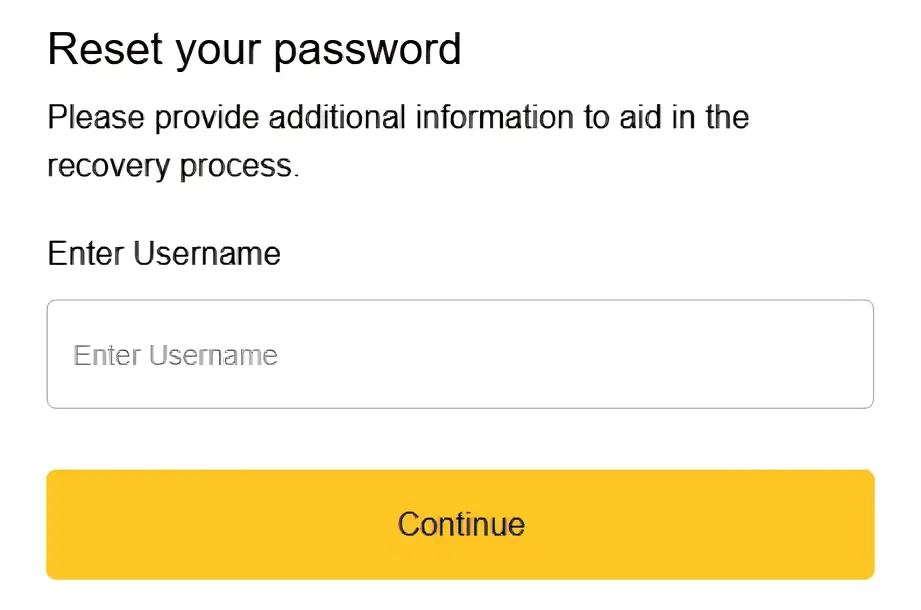
Sometimes, the issue might be with your browser’s cache or saved session. Clear your browser cache and cookies and try again. You can also try using a different browser or device to ensure there are no technical glitches.
Wait for the System to Update
If you have just completed your registration and profile submission, sometimes it takes a little while for the system to process and verify your profile. This delay could be due to:
- High traffic on the Sewayojan Portal
- Backend verification processes
Give it 24-48 hours and check again.
Re-submit Documents If Necessary
If you have been informed that your profile verification failed, you may need to re-submit your documents. Ensure that:
- All documents are clear and properly scanned.
- The document size does not exceed the allowed limit.
Re-uploading documents is a simple way to fix verification issues.
Contact Sewayojan Support
If your profile still isn’t verified after following the above steps, you can contact Sewayojan support for assistance.
Here’s how you can reach them:
- Phone: 0522‑2630690
- Email: sewayojan‑up@gov.in
They can help resolve issues specific to your account and assist with manual verification if necessary.
Use a Different Device
Sometimes the problem lies with the device itself. If possible, try accessing the portal from another device like a computer, tablet, or different smartphone. Switching devices can help clear up issues tied to specific hardware or settings.
Check for System Updates
If you’re using a mobile phone, ensure your OS and browser are updated. Outdated software can cause compatibility issues with websites. Update your operating system and browser to the latest version for the best experience on Sewayojan Portal.
Quick Tips for a Smooth Verification Process
- Ensure your documents are clear and legible.
- Double-check all personal information for accuracy.
- Make sure your internet connection is stable while uploading.
- Wait a few hours and check if the system updates automatically.
FAQs
1. Why is my Sewayojan profile not getting verified?
Your profile might not be verified due to missing or incorrect documents, typographical errors in your personal details, or issues with your mobile number or email. Double-check all fields and documents, then try again.
2. How can I update my mobile number or email if it’s incorrect?
If your registered mobile number or email is incorrect, you may need to update it by contacting Sewayojan support. They will guide you on how to make these changes.
3. What should I do if I am not receiving OTPs for verification?
Ensure your mobile number is correct and active. Check your phone’s message filtering settings and try switching to another network if needed. If the issue persists, contact support.
4. How long does it take for my profile to be verified on Sewayojan?
Typically, it may take anywhere from 24 to 48 hours for the system to verify your profile after submission. If it takes longer, contact Sewayojan support for assistance.
5. What if my documents are too large to upload?
Make sure your document files are within the allowed size limit. Try resizing or compressing your documents if they are too large. Alternatively, use a different file format like PDF or JPEG if required.
Final Word
Profile verification on the Sewayojan Portal may seem confusing at first, but by following these simple steps, you should be able to resolve most issues. If the problem persists, don’t hesitate to reach out to support for further help. Once your profile is verified, you’ll have full access to all job opportunities and can apply for both government and private sector roles.